How to Build a Conversion-Focused Fashion Store with PressMart Theme
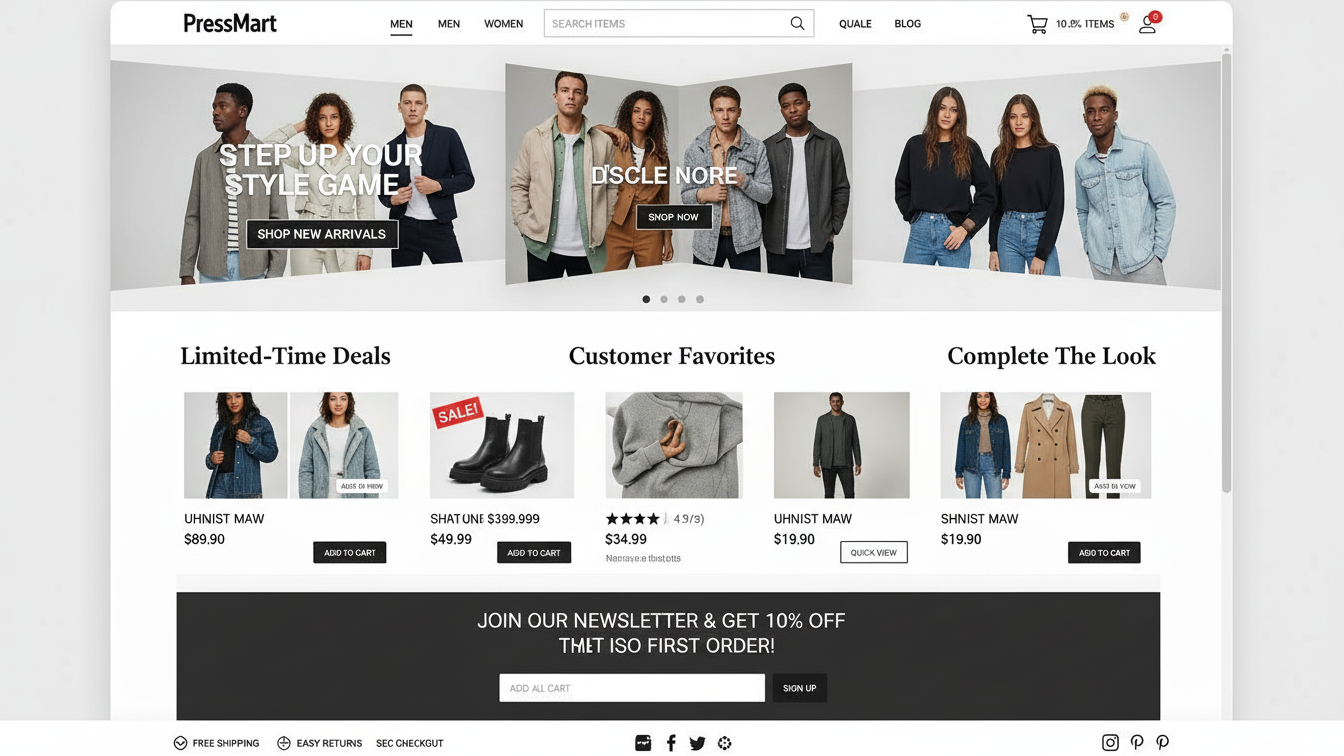
Building a high-converting fashion store requires a balance between high-end aesthetics and aggressive performance. Fashion shoppers are visual, impatient, and often shopping on mobile devices.
PressMart is an excellent choice for this because it is Elementor-based (easy design), lightweight (fast loading), and comes packed with retail-specific features that usually require paid plugins.
Here is a step-by-step guide to building a conversion-focused fashion store using the PressMart theme’s specific capabilities.
1. Optimize the “First 3 Seconds” (Homepage & Hero)
Fashion relies on immediate visual impact. If the site looks cheap or loads slowly, you lose the sale instantly.
- Utilize the Pre-Built Hero Templates: PressMart offers high-impact Elementor hero sliders.
- Strategy: Don’t just display a dress. Display a lifestyle. Use high-resolution images, but convert them to WebP format before uploading to ensure the slider doesn’t kill your load speed.
- Enable the “Lookbook” Feature: PressMart has a built-in “Lookbook” element (shoppable images).
- Strategy: Upload a photo of a model wearing a full outfit. Place “hotspots” on the hat, shirt, and shoes. When a user clicks the hotspot, they can add the item to the cart directly from the image. This reduces friction and increases Average Order Value (AOV).
2. Streamline Navigation with Visual Cues
Fashion catalogs are deep (e.g., Men > Shirts > Button-downs). Standard text menus are boring and slow.
- Deploy the Mega Menu: PressMart allows you to build Mega Menus using Elementor.
- Strategy: Do not just list categories. Inside the dropdown menu, insert a promotional banner for “New Arrivals” or “Sale Items.” This captures traffic immediately from the navigation bar.
- Activate Ajax Search with Live Thumbnails: Go to PressMart Theme Options > Header > Search.
- Strategy: Ensure that when a user types “red dress,” the search bar drops down showing pictures of red dresses, not just text links. Visual confirmation leads to higher click-through rates.
3. Master the Product Listing Page (PLP)
This is where the user browses. The goal here is to let them filter quickly and see the product without clicking through.
- Enable “Secondary Image on Hover”: In Theme Options > WooCommerce > Product Archive.
- Strategy: When a user hovers over a product card, it should flip to show the back of the garment or the item on a model. This answers questions without requiring a page load.
- Use the Off-Canvas Filter (Mobile Priority):
- Strategy: On mobile, sidebar filters take up too much space. Set PressMart to use the “Off-Canvas” filter sidebar. It keeps the product grid clean while making sorting by Size/Color easily accessible via a button.
- Color Swatches on Archive: Make sure users can see available colors directly on the catalog page. If they see the color they want, they are 50% closer to buying.
4. Construct a High-Converting Product Page (PDP)
This is where the decision happens. PressMart has specific modules to reduce abandonment here.
- Activate “Frequently Bought Together”: PressMart has this feature built-in (saving you from buying a plugin).
- Strategy: If you are selling a suit jacket, configure the “Bought Together” to automatically suggest the matching trousers. This is the easiest way to double your revenue per customer.
- Sticky Add-To-Cart Bar: Enable this in Theme Options.
- Strategy: As the user scrolls down to read the description or reviews, the “Add to Cart” button should stick to the bottom of the screen (especially on mobile). It keeps the primary goal always within thumb’s reach.
- The Size Guide Popup:
- Strategy: Returns kill fashion profits. Use PressMart’s custom size guide feature to create a popup table. Do not paste the size chart in the description text; hide it behind a “Size Guide” link near the size selector to keep the layout clean.
5. Leverage Social Proof (The Trust Factor)
As discussed in your previous prompt, social proof is vital.
- Instagram Feed Integration: PressMart integrates well with Instagram feeds.
- Strategy: Place a “Shop the Look” Instagram feed above the footer. Seeing real people wearing the clothes validates the fit and style.
- Review Styling: Ensure your product reviews allow for customer photos. Seeing a dress on a “real body” rather than a model is the ultimate conversion tool for fashion.
6. Mobile Optimization (The Bottom Toolbar)
70%+ of fashion traffic is mobile. PressMart mimics the “App Experience” via its Mobile Toolbar feature.
- Configure the Bottom Toolbar: Go to Theme Options > Mobile.
- Strategy: Enable a fixed bottom navigation bar containing: Home | Shop | Search | Cart | Account. This makes the site feel like a native app (like Zara or ASOS) and makes navigation seamless on large phone screens.
7. Performance Tuning
PressMart is fast, but you must maintain it.
- Disable Unused Elements: Since PressMart uses Elementor, you might be tempted to use every widget. Don’t. Use the PressMart “Studio” to import only the blocks you need.
- Minify CSS/JS: Use the theme’s built-in performance tab to minify scripts. A slow fashion site is an abandoned fashion site.
Summary Checklist for Launch:
- Lookbook: Set up shoppable lifestyle images.
- Swatches: Ensure colors are visible on the shop page.
- Sticky Cart: Enable on mobile.
- Bundles: Set up “Frequently Bought Together” for top sellers.
- Speed: Optimize all images to WebP.